

by NOVA

Sep 11, 2026
When a buyer asks how do i install smart switch on my pc, answer the wall-switch job first: freeze line, load, neutral, ground, load class, and Wi-Fi or hub path on one signed sheet, then commission from a laptop or phone only after the paddle already works. A wall smart switch lives in a wall box; the PC is a commissioning client, not the install location. Phone-to-PC migration software that also uses the words “Smart Switch” is a different product category and is out of scope here.
This page is the project-input checklist distributors and installers should archive before purchase orders move—conductor roles, network credentials, who may pair after cutover, and when a US Wi-Fi wall family such as Star Feather fits. It is not a Samsung desktop-app tutorial and not a reprint of another brand’s manual. Use it whenever smart switch installation work arrives with PC or laptop commissioning language.
After the sheet is signed, browse the smart switch pillar for US and EU wall families.
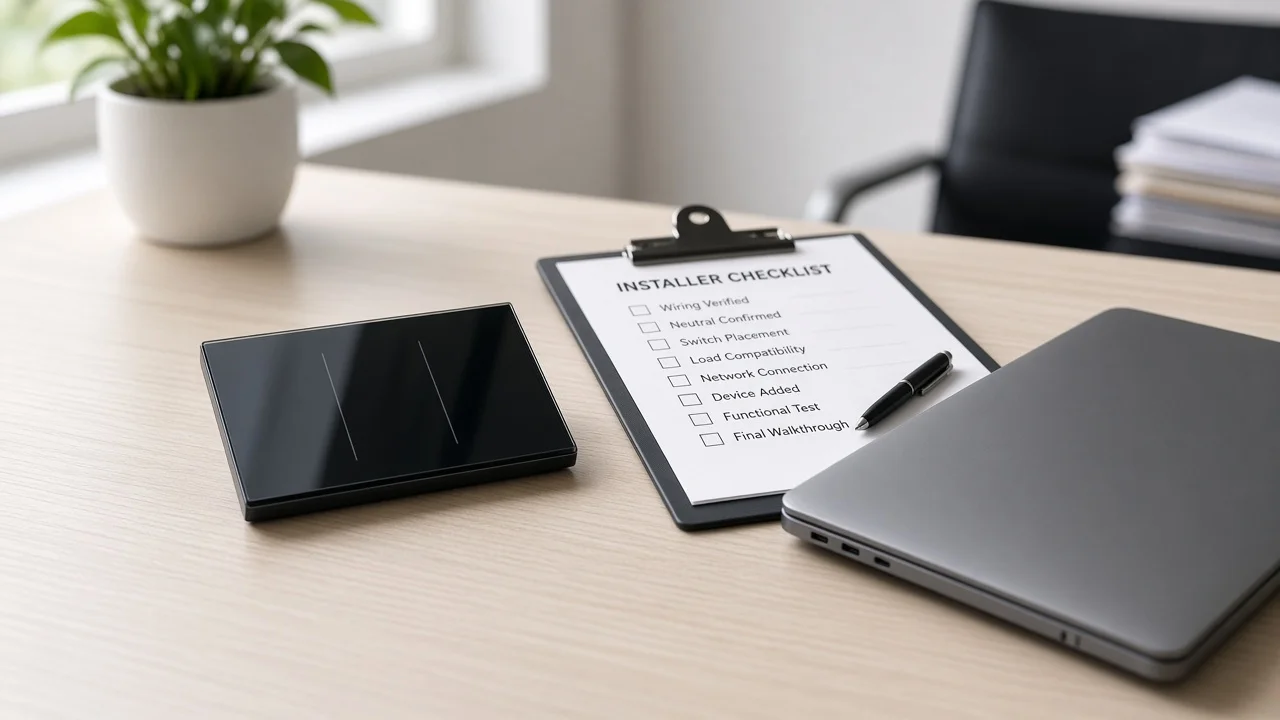
Treat the PC wording as how the RFQ arrived, not as a mounting surface. Copper work still happens at the switch box: identify the always-hot feeder, the switch leg to the fixture, the neutral that can power electronics while the lamp is off, and the equipment ground. Only after those roles are tagged, landed, and the wall control proves true does anyone open a manufacturer app on a phone or a laptop.
Channel desks that skip this order create two ticket piles. One is “the app will not find the device,” which often traces to a swapped line/load pair or a missing matched neutral. The other is “install Smart Switch on my PC,” which may actually be a Galaxy phone backup request that never belonged on a lighting PO.
Keep the sheet language plain: wall install first, commissioning client second. Name who restores the breaker, who presses the paddle, and who is allowed to bind Wi-Fi or a hub afterward.
If the reader wants Galaxy phone backup, restore, or firmware tools that install as desktop software on Windows or Mac, that path is outside this page. We will not publish download steps, redistributable fixes, or USB migration walkthroughs for that software category.
MOES wall switches do not install “onto” a PC chassis. When the same English phrase shows up in distributor chat, ask one clarifying question: wall lighting control, or phone-to-PC migration? Route the second case away from lighting SKUs so warehouse picks and electrician schedules stay clean.
This disambiguation exists so support time is not burned teaching the wrong product. The rest of the page assumes a wall smart light switch job that merely mentions PC, laptop, or app commissioning.
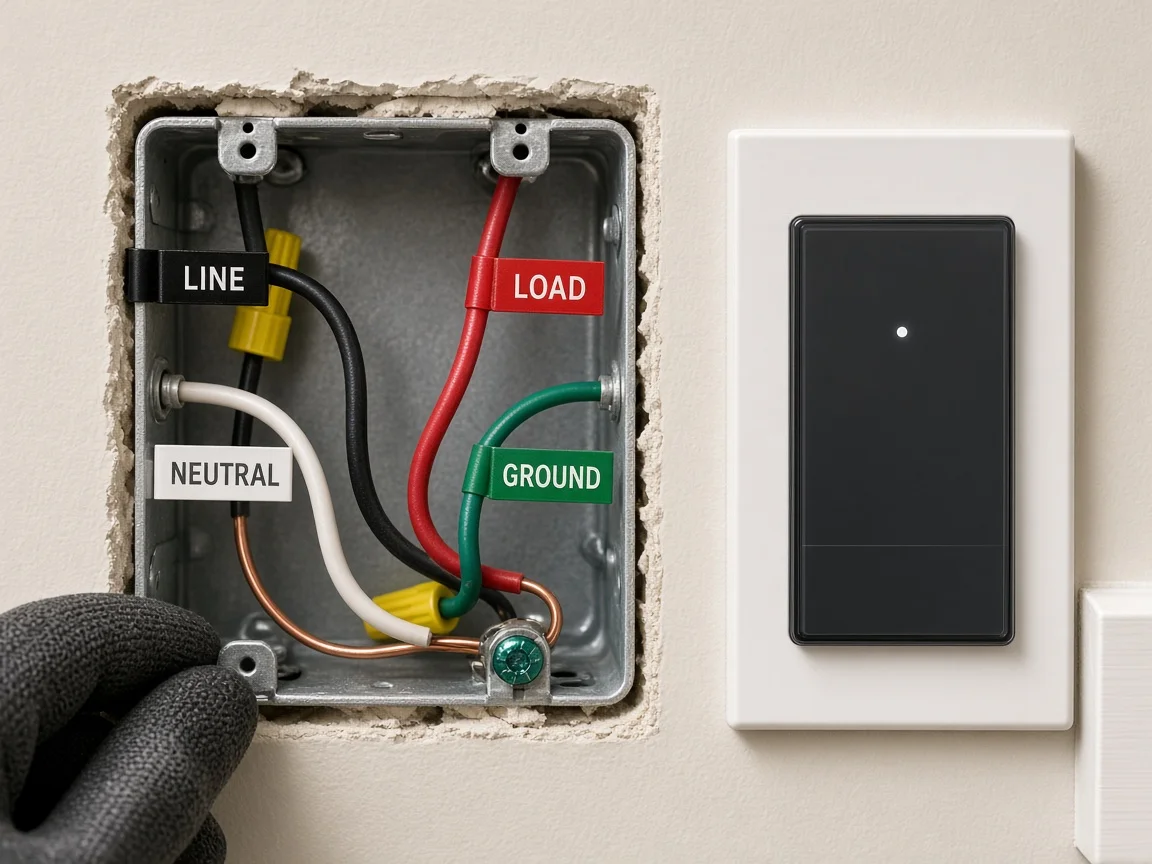
Photograph the existing device while every conductor is still on its screw, then label line, load, neutral, and ground by role—not by jacket color alone. US practice does not guarantee that every white conductor is a neutral, and community install threads keep repeating that lesson when someone grabs the wrong bundle in a crowded multi-cable box.
| Field | What to write | Why it matters |
|---|---|---|
| Line | Photo ID + tester confirmation | Always-hot feeder from the circuit |
| Load | Photo ID + fixture path | Switch leg that feeds the lamp |
| Neutral | Present / absent / fixture-only — which bundle | Powers Wi-Fi electronics while the lamp is off |
| Ground | Present / bonded / missing | Safety path—not an electronics return |
| Topology | Single-pole / multi-gang / travelers noted | Stops wrong kit architecture |
| Label owner | Who marked wires before disconnect | Archive accountability |
Most Wi-Fi wall switches need a correct circuit neutral so their radios and processors can stay alive in standby. A neutral wire smart switch datasheet that requires that return path will not wake correctly if the matched bundle is missing.
Planning language tied to NEC 404.2(C) expects a grounded conductor at many lighting-control locations in habitable rooms, baths, halls, and stairs, with Code exceptions and local adoption still deciding the job. Ask the responsible electrician which code edition applies on site, and treat Code language as a planning note rather than an inspection stamp you invent.
Important: Keep ground on its own row. Bond green or bare to the house ground. Do not treat equipment ground as a standing return so the electronics “wake up,” except where a listed retrofit path is explicitly chosen, marked, and logged—and even then count limits and listing notes belong on the sheet, not in tribal memory.
Neutrals used for the switch must belong with the same circuit family as the switched conductors. Stealing a white from another cable in the same box is a common shortcut that trips breakers or leaves the device half-alive. If the matched neutral is missing, escalate a pull or choose a datasheet that openly supports a no-neutral path for that lamp class—then park that exception on a separate worksheet instead of stretching this PC-worded form into a full no-neutral buying guide.
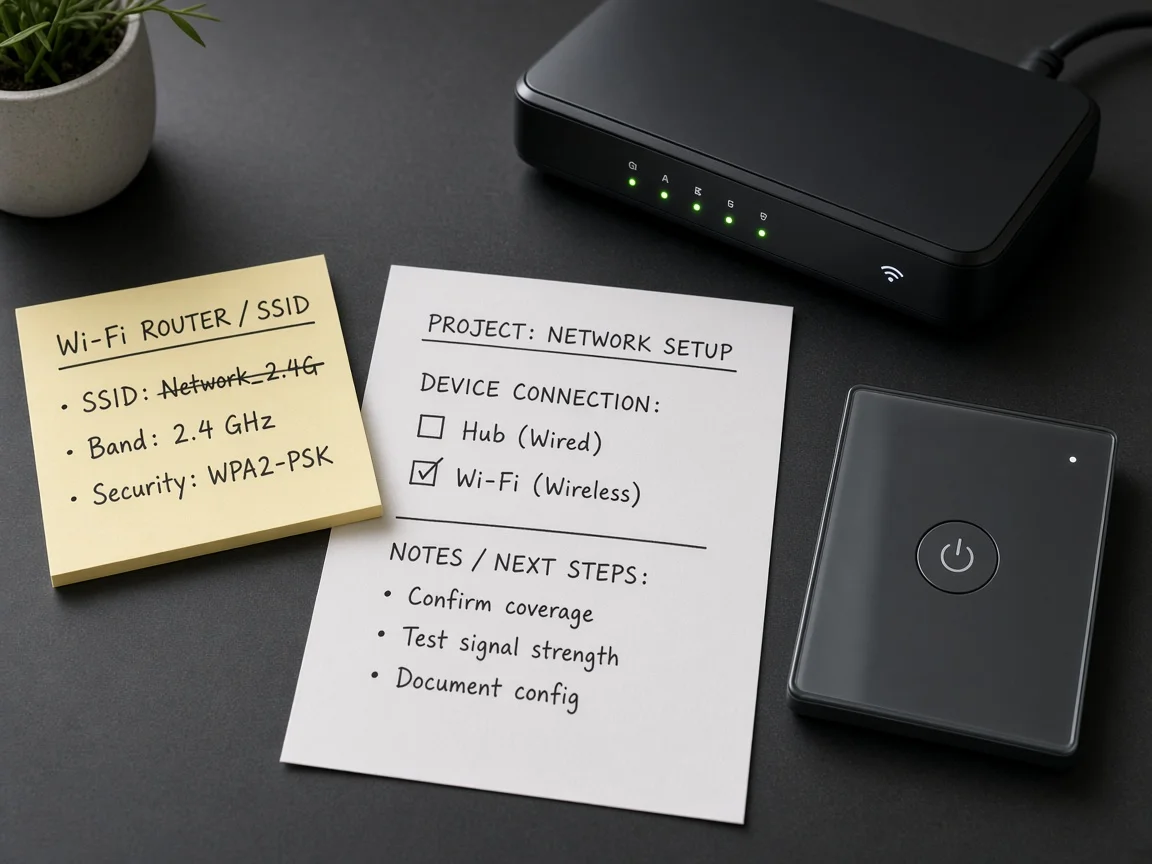
Write the network path with the same seriousness as the copper path. Direct Wi-Fi switches need an SSID the device can join, usually on a 2.4 GHz band; phones or laptops parked only on 5 GHz often fail discovery even when the wall paddle already works. Hub or bridge systems need the hub model, firmware owner, and which app account may add devices.
| Network input | What “done” looks like |
|---|---|
| Protocol path | Wi-Fi direct / hub or bridge — named |
| SSID / band | 2.4 GHz confirmed for Wi-Fi devices; owner of password |
| Commissioning client | Phone, laptop, or both — who may bind |
| Account ownership | Which org login owns the device after cutover |
| Signal note | Weak-box location flagged before truck roll |
Freeze these rows before the warehouse ships glass panels into a dead zone. A laptop on the kitchen island is not proof that the switch location hears the same radio. If the job is hub-based, do not leave “powered” mistaken for “commissioned” on the punch list.
Park lamp and driver class—LED, CFL, halogen, mixed banks—next to every candidate part number, with an approximate watt or amp note against the datasheet ceiling. Electronic switches publish current or wattage limits by load family; skinny LED strips under a published floor flicker, ghost, or refuse a clean off. This sheet defaults to on/off wall control; send dimming or multi-way deep architectures to their own datasheets when those jobs arrive.
Physical fit is a separate row. Smart bodies usually sit deeper than a thin mechanical rocker.
Note plastic versus metal cans, approximate depth, how many gangs share the box, and whether a mud ring or extension is already planned. Crowded remodel boxes stop a flush seat even when copper tags are perfect—do not learn the interference only after cutover while a laptop waits for pairing mode.
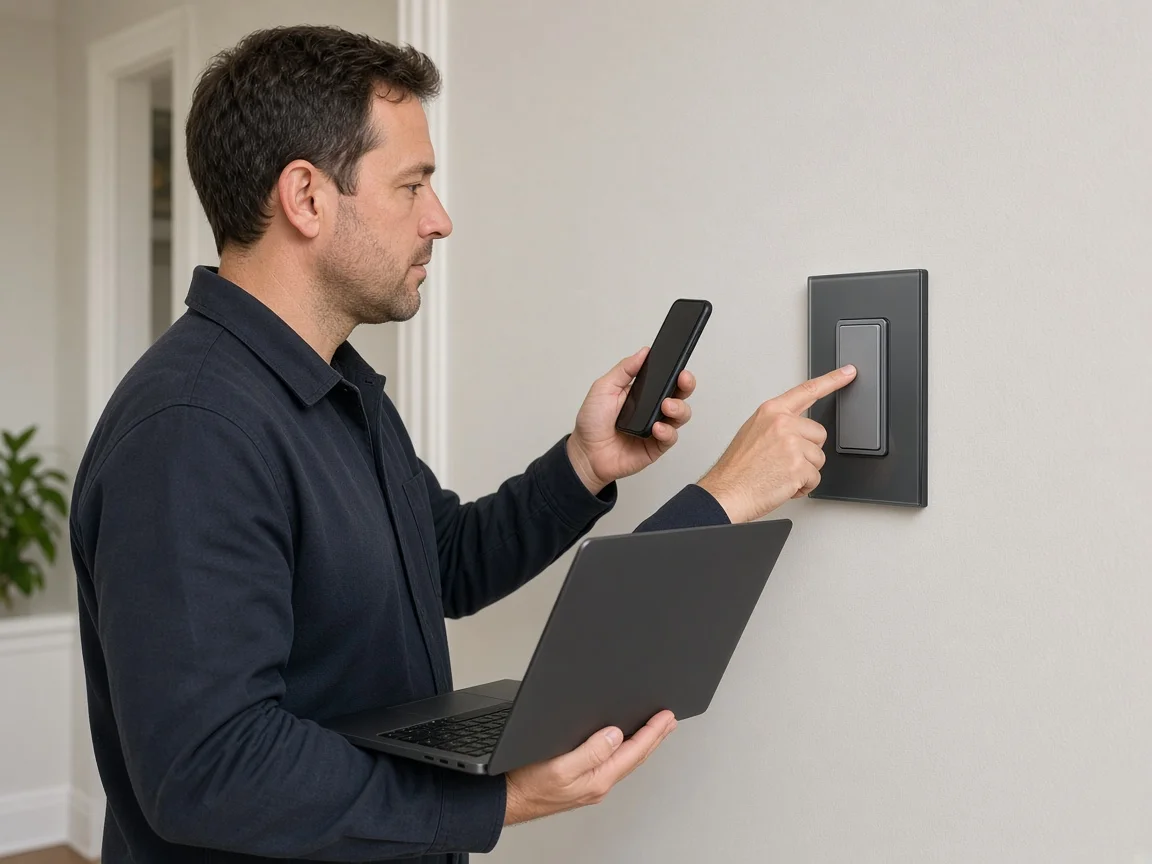
Restore power, press the paddle, and confirm the fixture responds before anyone owns the commissioning client. Live install walkthroughs keep the same order for a reason: binding a mislabeled feeder set early manufactures “offline” tickets that were copper mistakes all along.
Name who restores the breaker, who proves the wall control, and who may open the app on a phone or PC afterward. If the paddle fails, stop.
Re-check landings and load notes before chasing firmware. Wi-Fi pairing is the last mile, not the substitute for copper.
From the field: Installer communities urge crews to photograph which screws held which conductors before disconnect, because jacket tint lies and memory fades once the plate is gone. (source)
Lock photos and field values before purchase orders leave the channel desk. The signed PDF or photo set travels with the job folder so later “never paired” tickets show whether copper, fit, and network rows were ever frozen.
| Input | What “done” looks like |
|---|---|
| Line / load IDs | Tagged + photo with tester note |
| Neutral status | Present / absent / fixture-only — verified by |
| Ground | Bonded / missing — action noted; never used casually as neutral |
| Box fill / depth / gangs | Fits / needs extension / needs box work |
| Load class | LED / CFL / incandescent / mixed + approx. load |
| Protocol path | Wi-Fi direct / hub — named |
| Pairing ownership | Manual test owner + app/PC bind owner |
| Disambiguation check | Wall lighting job confirmed (not phone-to-PC software) |
| Sign-off | Installer + channel buyer initials + date |
Qualified electrical work still needs hazard recognition and verification that circuits are de-energized before contact. Put breaker ownership and verify-dead steps on the same sheet so a laptop wizard never substitutes for lockout discipline.
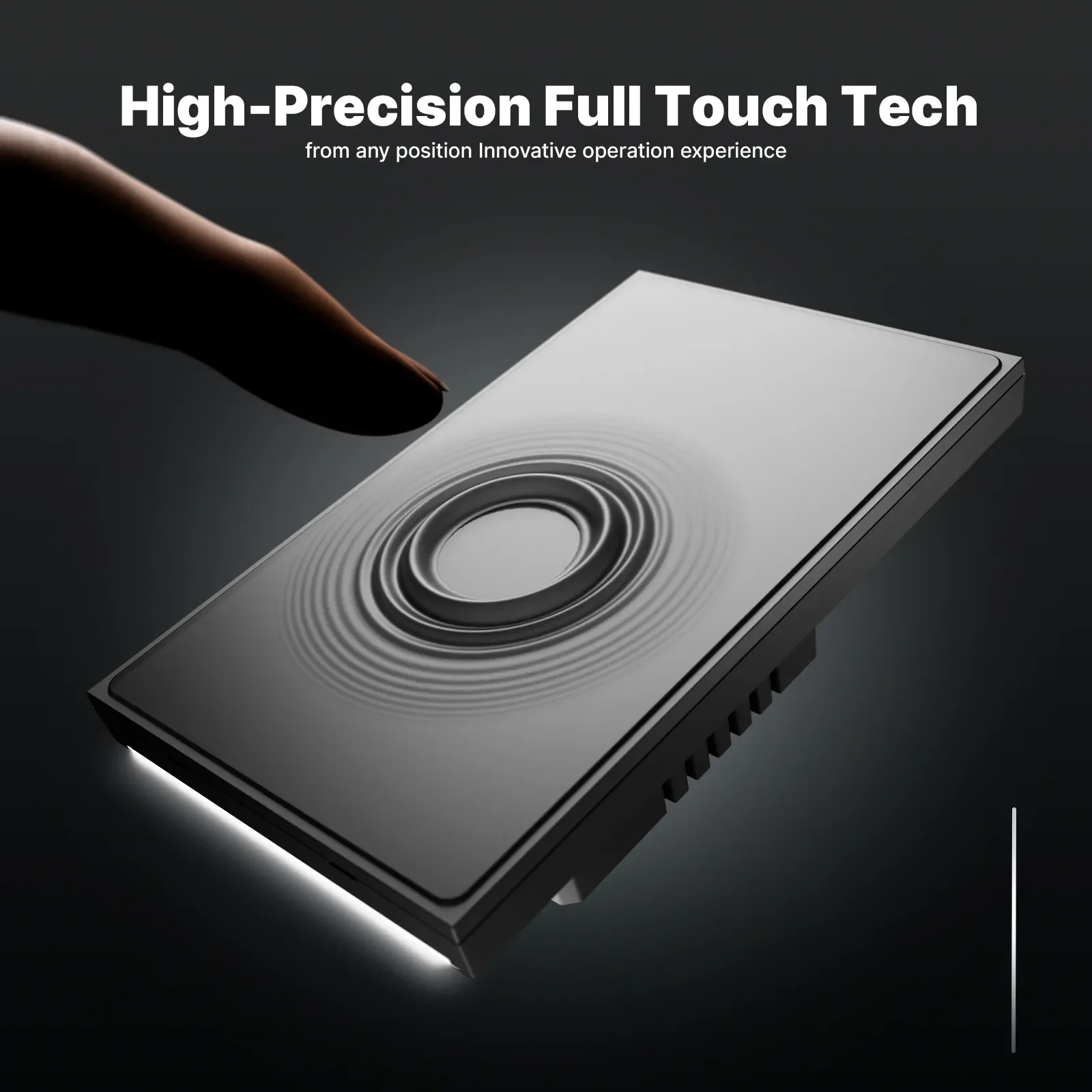
Offer MOES Tuya WiFi Star Feather Series US Switch only after the signed form already shows US geometry, a confirmed neutral, a Wi-Fi path, and load notes inside the published limits.
Page data for WS-SF-US1 through WS-SF-US4 describes a Wi-Fi US wall-switch family rated 90–250V AC with 10A per gang and 10A total, operating on 2.412–2.484 GHz with maximum RF transmit power under +10 dBm. US collection notes treat those entries as neutral-wire devices. Light Mode cannot run at the same time as Scene Mode, so write which mode the job needs before commissioning starts.
Skip Star Feather US when neutral is missing, when load exceeds those page limits, when multi-way kit architecture is still fuzzy, or when the reader still wants a Samsung Smart Switch PC software guide. When the paperwork is signed, use Contact Us if the channel needs packaging or kit questions.
No. For lighting control jobs, the switch installs in a wall box. A PC or laptop is only a commissioning client after copper and a wall paddle test pass.
No. Phone-to-PC backup and migration software is a different product category. This page does not teach those download or USB steps.
Line, load, a matched circuit neutral (present or absent), and ground—each identified by role with a photo while the old device is still connected when possible.
No. Restore power, prove the fixture from the wall control, then assign who may bind Wi-Fi or a hub from a phone or PC.
Protocol path (Wi-Fi direct versus hub), SSID and band ownership—commonly 2.4 GHz for Wi-Fi switches—commissioning-client owner, and any weak-signal note at the box location.
When the signed sheet already shows US format, confirmed neutral, Wi-Fi path, and load within the live page limits for WS-SF-US1/2/3/4—and the job is wall lighting control, not phone migration software.
A qualified person who will verify the circuit is de-energized before contact work. Escalate unclear maps instead of guessing from an app wizard.


OTHER SMART DEVICES
Jun 13,2026
OTHER SMART DEVICES
Jun 12,2026
TUYA SMART HOME PRODUCTS
Jun 12,2026
 +86 137 3639 3028