

by NOVA

Sep 18, 2026
After copper is correct, most tuya smart app problems are band, router-policy, pairing-mode, or account faults — not automatic hardware failures. This checklist is for the Installer / distributor channel team who must clear those faults and capture evidence before an RFQ escalation. You will walk band checks, isolation policies, Smart Life app offline recovery, EZ mode vs AP mode, 2.4 GHz Wi-Fi pairing traps, 5 GHz Wi-Fi mismatch risk, weak RSSI / signal notes, share/account issues, firmware stalls, hub-versus-Wi-Fi confusion, and the packet that should reach the supplier.
They mean the wall box already has power and conductors that match the install package, yet Tuya Smart or Smart Life still cannot add, keep online, share, or update the device.
Treat the app status and the physical load as two different questions. A switch can still toggle a light while the phone shows offline.
That split is why “it works on the wall” is not proof the SKU is fine for remote control. It is also why “app says offline” is not proof the relay failed.
For channel tickets, start with onboarding conditions: which SSID and band were used, which pairing mode the LED showed, which account role ran the add, and which router model is on site. Those fields are the difference between a useful RFQ and a guess.
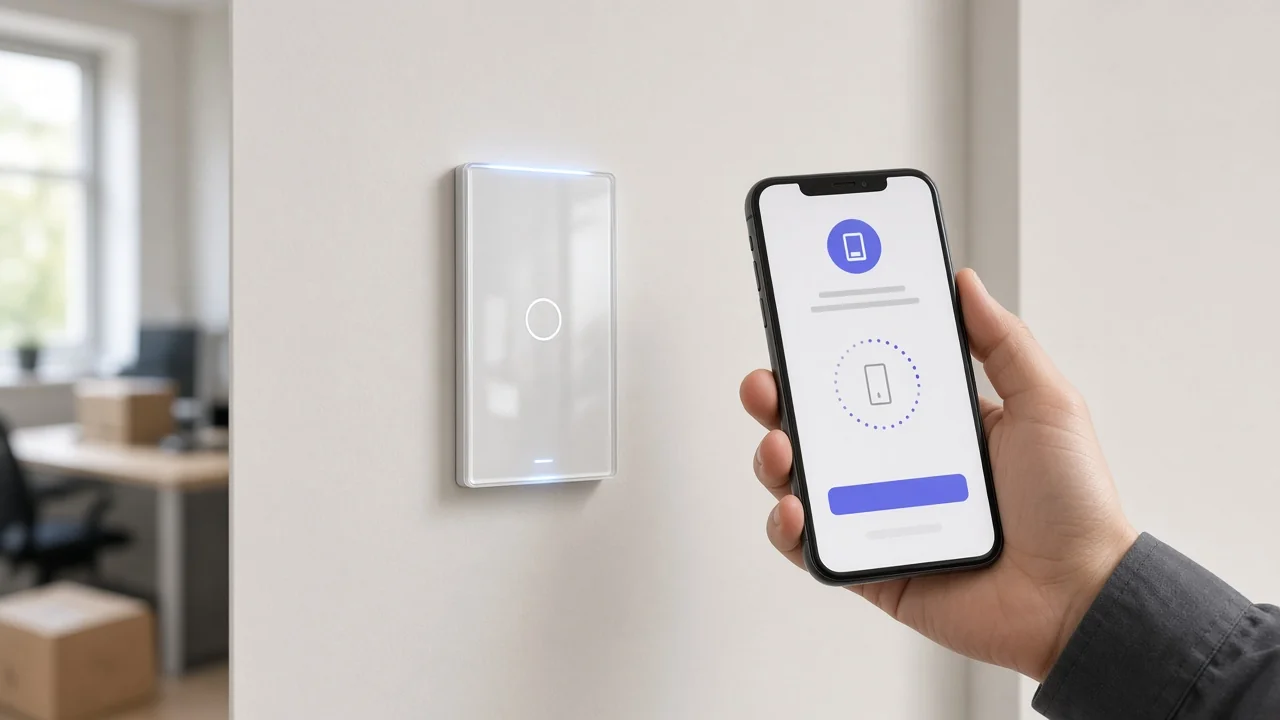
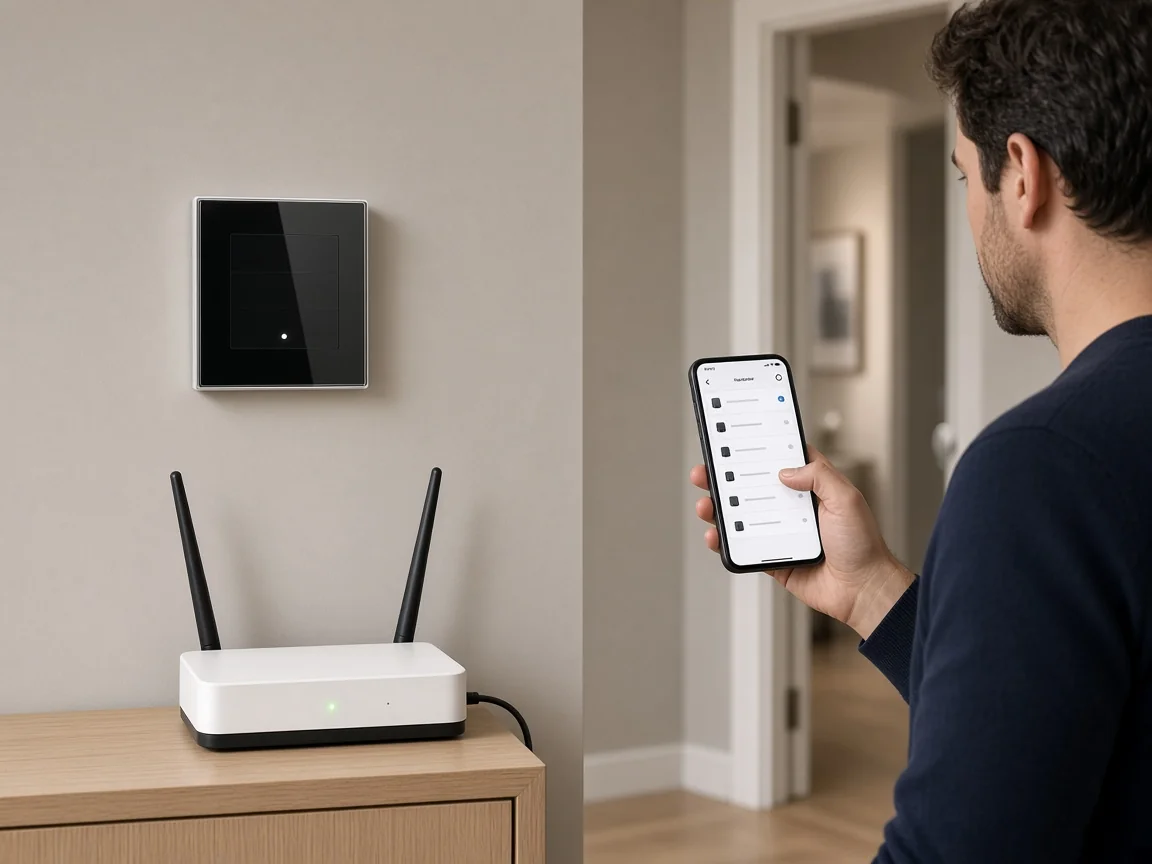
Pair Wi-Fi devices on a usable 2.4 GHz path. Official app help states only 2.4G Wi-Fi is supported for pairing, so treat 2.4 GHz Wi-Fi pairing as the first filter.
IEEE 802.11 families already split the bands: common IoT-class radios sit in the 2.4 GHz ISM range, while phones happily prefer 5 GHz. When a router advertises one combined SSID for both bands, the phone can land on 5 GHz while the switch is still hunting for 2.4 GHz.
Platform pairing docs call out that failure mode. They recommend separate 2.4 / 5 SSIDs or AP-mode pairing.
Also record the security and broadcast settings the help pages require: SSID not hidden, WPA2-PSK with AES (or automatic), and wireless mode not locked to 11n-only. Chinese characters in the SSID are explicitly disallowed in the official FAQ.
Capture a screenshot of the phone’s connected band or a router admin note that the commissioning SSID is 2.4 GHz-only.
Router policies can look exactly like a dead device in the app.
AP isolation and guest-network isolation keep clients from talking to each other on the LAN. That breaks discovery and local handshakes even when the phone has internet.
MAC filters and allowlists block a brand-new module that was never added to the list. Router client limits fill up on hospitality and multi-room jobs long before anyone notices.
Official troubleshooting asks you to clear MAC filter blocks and free client slots when pairing fails. For a channel ticket, write the SSID type (primary / guest / IoT), isolation on or off, MAC filter state, and approximate client count.
Do not escalate “cannot add” until those four fields exist.
Weak signal and bad reboot order create Smart Life app offline tickets that waste RFQ time.
If walls, metal boxes, or high-power appliances sit between the switch and the access point, expect dropouts. A retailer troubleshooting sheet uses phone-hotspot A/B tests to separate “this router” from “this device.”
You do not need a universal meter distance. You need a note that the phone can open a web page on the same Wi-Fi when standing at the wall box.
After a power cut, bring the router fully online first, then restart the affected device, wait, and refresh the app. Official offline guidance says reboot the router and wait about three minutes before judging status.
Keep the app open for about three minutes when remote control looks stuck. Several devices going offline together usually points at router or upstream internet, not eighteen simultaneous hardware failures.
Most “Failed to add” tickets are mode mismatches, not broken relays. Channel notes should state EZ mode vs AP mode explicitly.
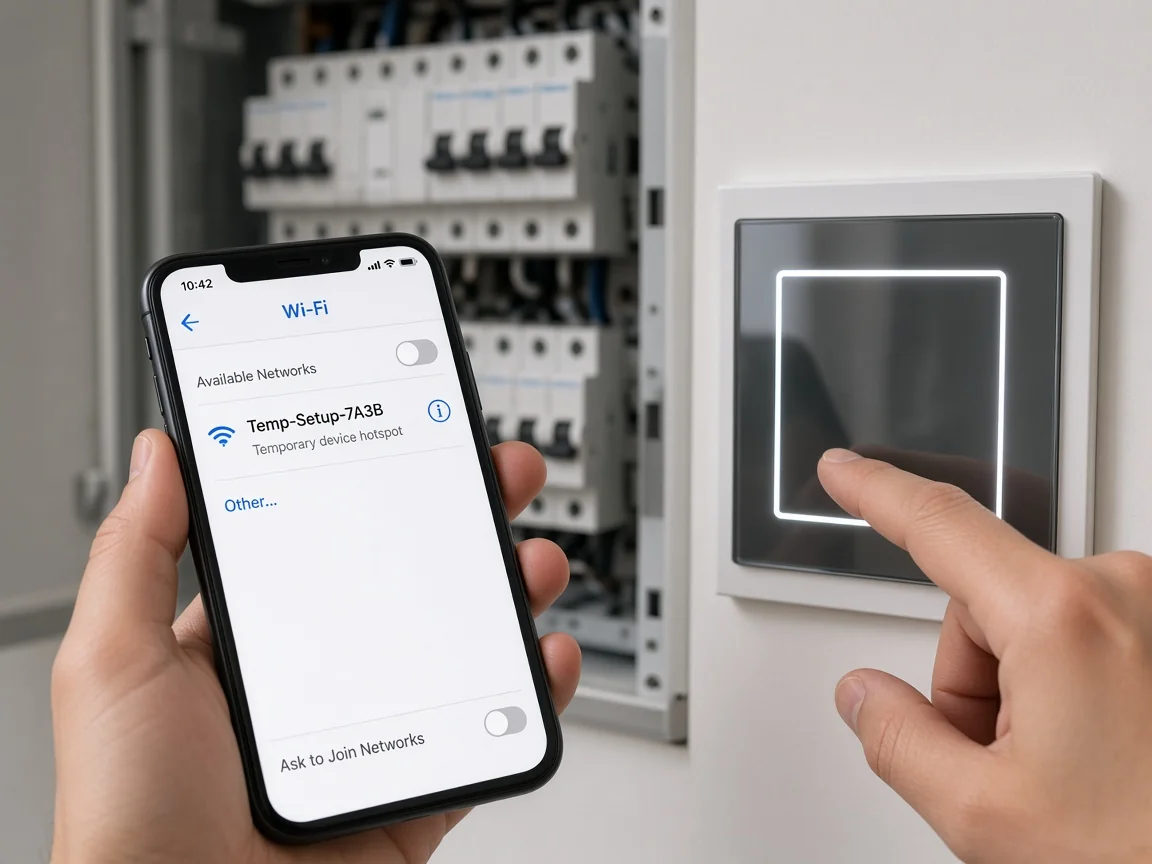
EZ mode expects a fast blink (about twice per second in the official help). AP / compatibility mode expects a slow blink and a temporary hotspot often named like SmartLife-xxxx.
If the LED pattern and the app mode disagree, the app can time out while the device is still blinking. Community installers repeatedly report that AP mode succeeds after EZ mode fails.
Community pages also stress joining the device hotspot fully before returning to the app. Phones sometimes treat that hotspot as an “insecure” network and drop it.
Platform docs add account blockers: guest users cannot add devices, and a device already bound to another account will not join yours. Pairing timeout and expired tokens show up in the developer error tables.
Reset and retry after you fix band and mode. Record whether the add used an owner account.
Wrong home, wrong role, or a stuck share invite can look like hardware.
Confirm the phone is logged into the intended home and region path the project uses. Confirm the operator is not a guest.
Platform FAQ indexes call out share-with-members and home-member failures as first-class app issues. Capture who owns the home, who was invited, and whether the share completed.
Do not open a factory RFQ for “second phone cannot control” until ownership and share screenshots are attached.
A firmware update that hangs mid-transfer is an evidence problem before it is a return problem.
Use the in-app device page path to Device Update (or the equivalent on your build). Capture the starting version string the app shows, the failure screen, and whether the device stayed online during the attempt.
Official FAQ indexes list “firmware update failed” as its own branch. Do not invent cloud SLA windows or MOES-specific bug rates.
Only record what the screen showed and whether a second attempt after a stable 2.4 GHz link changed the result.
Before you blame the SSID, confirm which architecture was sold.
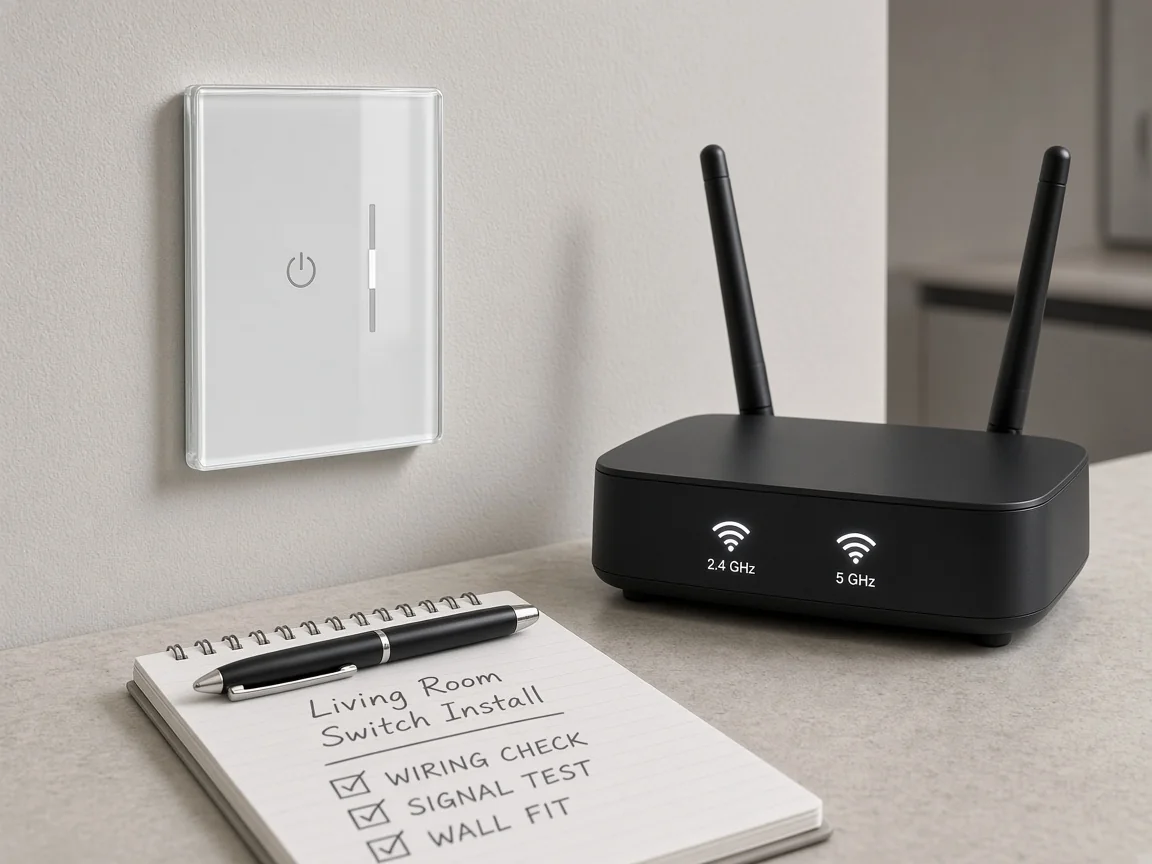
A Wi-Fi wall switch pairs to the phone’s 2.4 GHz network. A ZigBee module pairs through a hub.
Mixing those paths creates tickets where installers chase SSID settings for a device that never used Wi-Fi client mode. For architecture and bill-of-materials trade-offs, use the live sibling comparison at /blog/smart-home-hub-vs-wifi-b2b-comparison/. This article only needs the classification step.
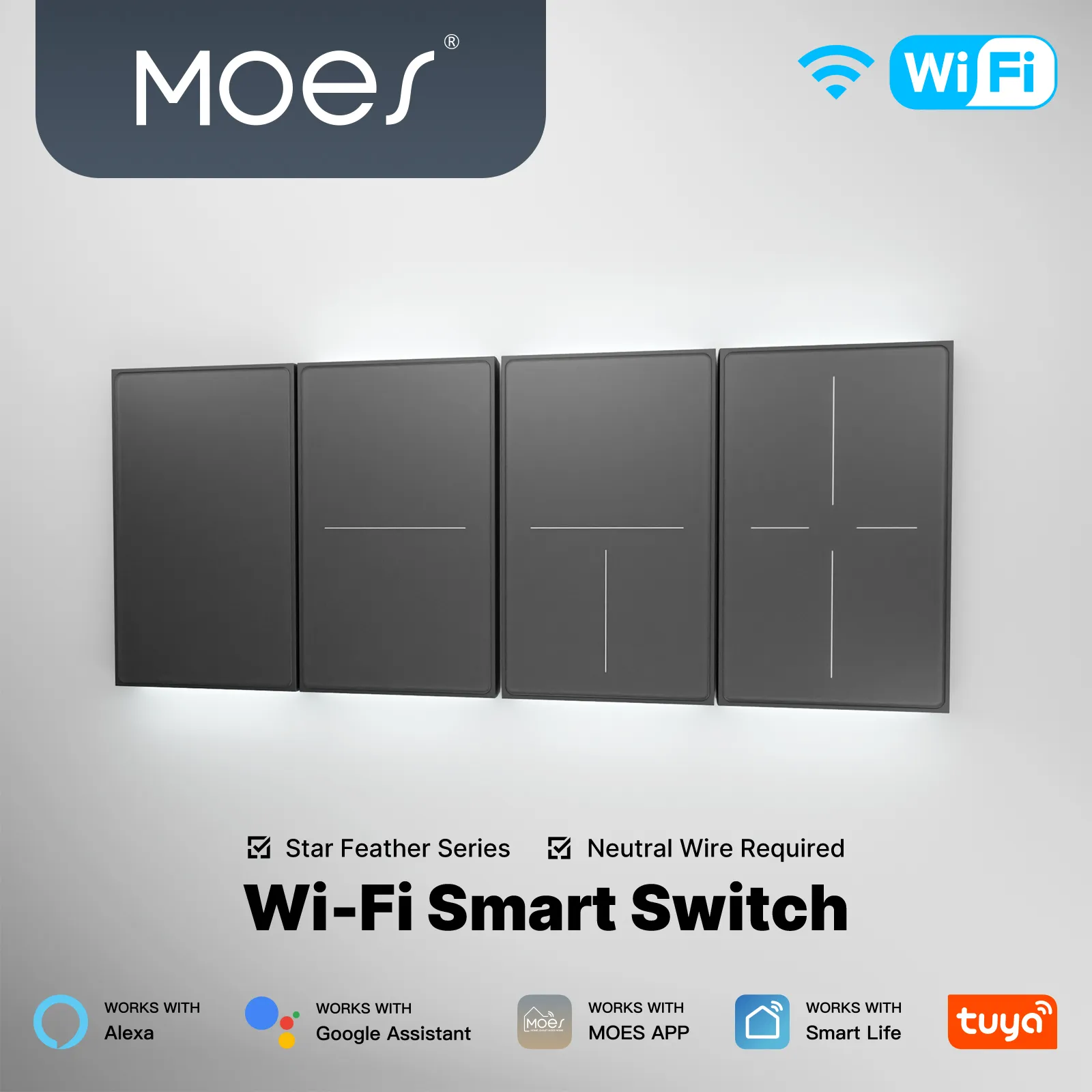
When copper is correct and the sold path is Wi-Fi, a concrete example is the MOES Tuya WiFi Star Feather Series US Switch — the Star Feather US switch on the live catalog. The live product page states Wireless Protocol Wi-Fi and Frequency Band 2.412~2.484GHz, which matches the band checks above.
That is an app-pairing example after copper passes. It is not a claim that Tuya Smart is MOES software.
If the ticket instead shows a ZigBee dimmer module such as MS-105Z, the same live catalog states ZigBee 3.0 and that a Tuya ZigBee hub is required. In that case, hub association — not the property’s 5 GHz SSID — is the first branch.
Escalate only after the packet exists. Official Feedback flows already ask for the router model; channel RFQs should go further.
| Symptom | Check | Evidence to capture | Next action |
|---|---|---|---|
| Failed to add / pairing timeout | 2.4 GHz path; EZ vs AP blink match; owner vs guest account | SSID band note; LED mode photo; account role | Retry AP mode on 2.4 GHz; then RFQ if still failing |
| Online locally, remote fails | Same Wi-Fi web page test; isolation off | Phone browser screenshot at the wall; isolation setting | Fix isolation/uplink; avoid immediate remove |
| Offline after power cycle | Router-first reboot order; wait about three minutes | Timeline of outage and reboot sequence | Restart device after router ready; then reassess |
| Share / second phone fails | Home owner and member invite | Share screenshots | Fix account path before hardware claim |
| Firmware stuck | Device Update screen on stable link | Version string + failure screen | Retry once on solid 2.4 GHz; then RFQ |
| Wrong architecture suspected | Wi-Fi SKU vs hub/ZigBee SKU | PO line / model photo | Reclassify path; do not chase SSID for hub devices |
| RFQ field | Why it matters |
|---|---|
| Model / PO line / protocol (Wi-Fi or ZigBee) | Stops wrong-path troubleshooting |
| Symptom timestamp and frequency | Separates one-off outages from persistent faults |
| SSID name type + band (2.4 vs 5) + security mode | Matches official pairing requirements |
| Isolation / MAC filter / client-limit notes | Explains “ghost” offline devices |
| Pairing mode used (EZ / AP) + LED behavior | Proves mode match |
| Account role (owner / guest) + share state | Catches non-hardware blockers |
| Router brand/model | Matches platform Feedback expectation |
| App screenshots (add fail, offline, Device Update) | Gives supplier a reproducible packet |
Important: Do not open a supplier RFQ that only says “app broken.” Without router model, band, pairing mode, and account role, the factory cannot tell a network policy fault from a module fault — source: Tuya Smart app Feedback guidance.
Use the first table on site. If every network and account row is clean and AP mode still fails on a verified 2.4 GHz SSID with an owner account, then — and only then — the ticket is ready for hardware escalation under the smart-switch pillar at /smart-switch/.
Yes for typical Wi-Fi device pairing. Official Tuya Smart help states only 2.4G Wi-Fi is supported at pairing time, and developer pairing docs flag 5 GHz and identical dual-band SSIDs as common cloud-connect failures.
Often the blink pattern and the app mode disagree, or the phone never fully joins the AP hotspot. Match EZ (fast blink) or AP (slow blink / SmartLife hotspot), confirm an owner account, and retry after band checks.
Not necessarily. Physical control can work while cloud or Wi-Fi status is offline. Refresh the app, confirm the same-network web test at the wall, and check isolation before you remove and re-add.
EZ is the fast-blink quick connect path. AP is the slow-blink compatibility path that uses the device hotspot. Tickets should state which mode was used and what the LED did.
Band and SSID type, broadcast/security mode, AP or guest isolation, MAC filter/allowlist state, and client-limit headroom — plus the router model the platform Feedback form already expects.
When the sold SKU is hub-backed ZigBee (for example a module that states ZigBee 3.0 and requires a Tuya ZigBee hub). Chasing 5 GHz SSID settings will not fix hub association faults.
Model/protocol, symptom timeline, band/SSID/security, isolation/MAC/client notes, pairing mode and LED behavior, account/share state, router model, and app screenshots including any Device Update failure.
Yes. A second phone without a completed share or home membership can look “dead” while the owner phone still controls the device. Capture share state before escalating hardware.


OTHER SMART DEVICES
Jun 13,2026
OTHER SMART DEVICES
Jun 12,2026
TUYA SMART HOME PRODUCTS
Jun 12,2026
 +86 137 3639 3028