

by NOVA

Sep 23, 2026
For distributors and installers, how to set up a smart home starts by freezing project inputs before the first kit ships — hub versus Wi-Fi path, rooms and device classes, 2.4 GHz Wi-Fi readiness, app account and region, power and neutral for wall switches, sensor placement, scene ownership, commissioning order, and the evidence pack that reaches RFQ before escalation.
This page is a B2B documentation sheet for that Smart home first deployment. It is not a consumer lifestyle shopping guide. Treat it as a smart home setup worksheet the channel can archive with the first smart home kit.
Upward hub: Tuya Smart Home Products. Architecture depth for stocking stays on smart home hub vs Wi-Fi. Device-class taxonomy stays on smart home device types.
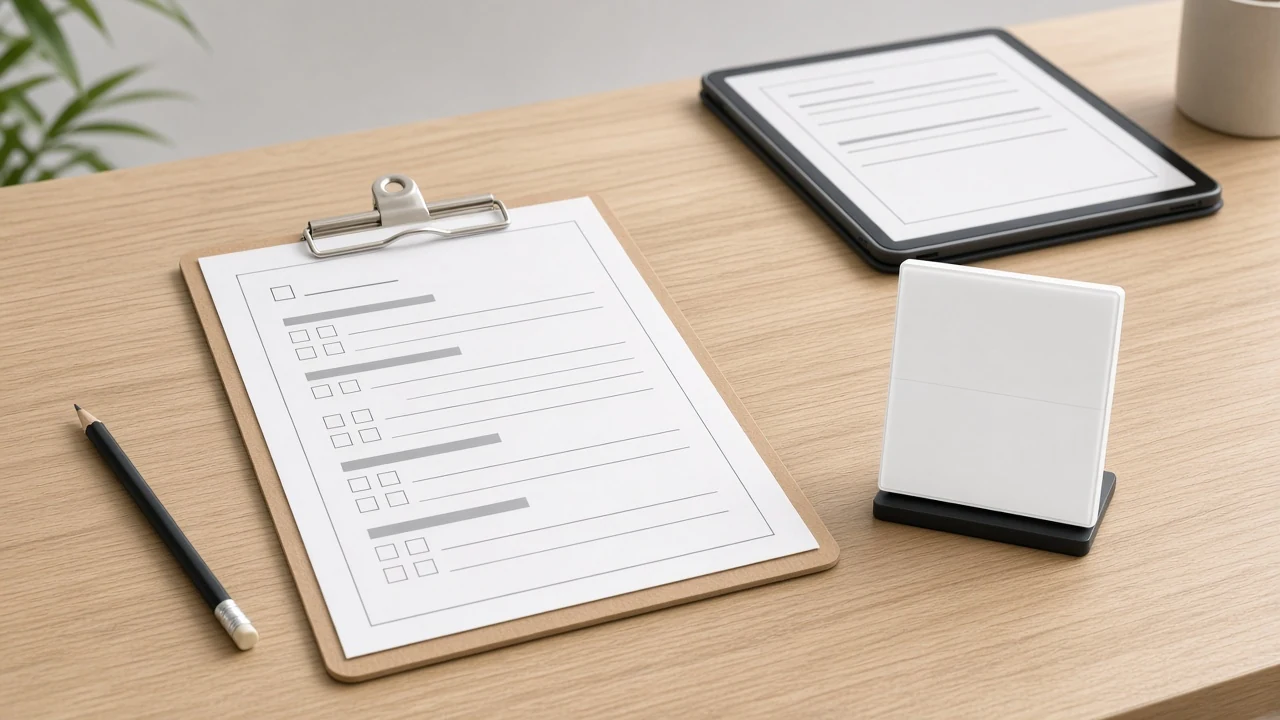
Freeze the radio path before packing any first kit.
A Wi-Fi path means end devices associate directly to the site access point through the companion app. A hub path means Zigbee (or similar mesh) end devices need a gateway on the bill of materials before pairing can finish. Mixing those assumptions in one pallet is how channels ship “almost complete” kits that stall on day one.
Write one line on the input sheet: Wi-Fi-direct, hub-backed, or a deliberate split with named rooms on each path. Protocol definitions live elsewhere — what is Zigbee and what is Matter — and the stocking comparison stays on the hub-versus-Wi-Fi page linked above. This sheet only needs the path freeze so SKUs match the job.
List room × device class before you count SKUs.
Start with rooms that matter on day one — entry, living, kitchen, primary bedroom — and mark classes such as wall switches, plugs, sensors, hub/gateway, and any thermostat or panel the quote already named. Keep the matrix short. A first kit that tries to automate every closet usually fails commissioning before it fails sales.
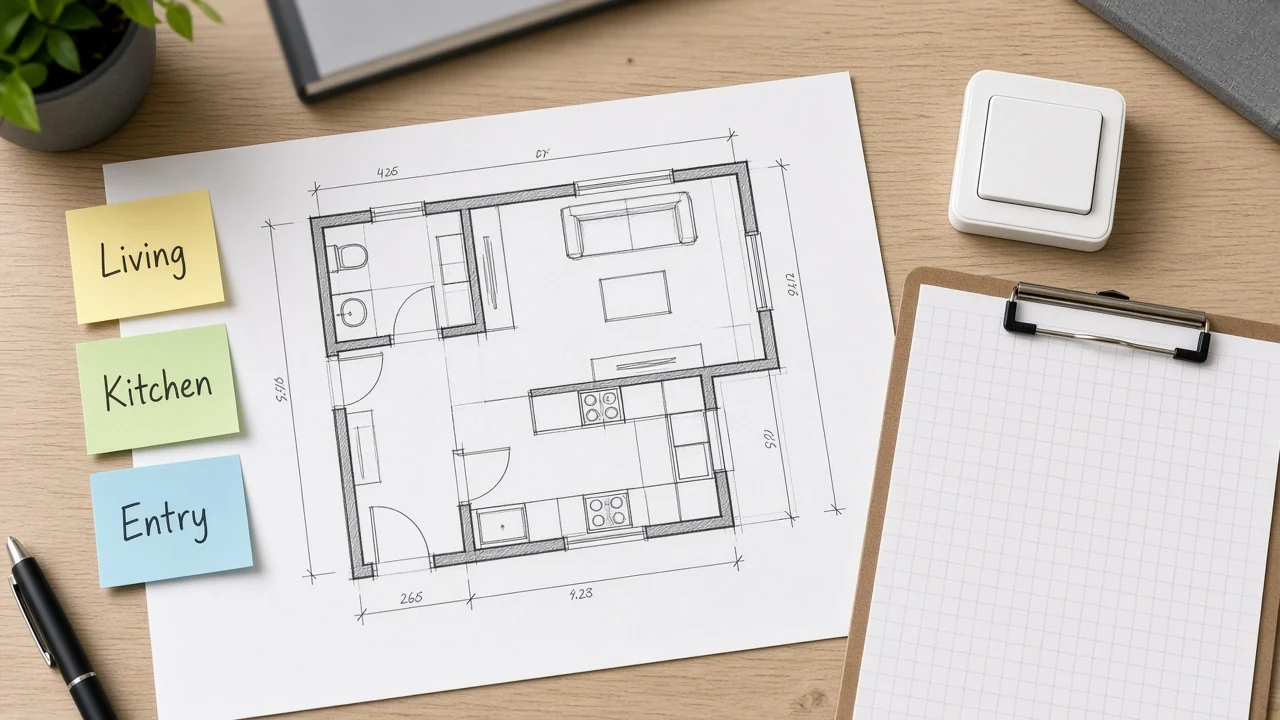
Class labels are project inputs, not a rewrite of taxonomy. When buyers need the classification map, send them to smart home device types and types of smart home sensors once — then return here to freeze which classes ship in kit one.
| Project input | What to freeze | Why it blocks setup if missing |
|---|---|---|
| Radio path | Wi-Fi-direct / hub-backed / split by room | Wrong SKUs arrive; pairing cannot finish |
| Room × class matrix | Rooms in kit one + device classes | Scope creep and missing companions |
| 2.4 GHz / SSID note | Band split or Smart Connect status | Classic pairing failures |
| App admin + region | Named account owner and app region | Orphan devices after handoff |
| Switch power/neutral | Per box survey | Wall controls cannot commission |
| Sensor placement | Tested spot + power class | Remount callbacks |
| Scene ownership | Who edits scenes + mode rules | Demo and support conflicts |
| Commissioning order | Network → hub → devices → scenes | Out-of-order labour |
Document 2.4 GHz readiness and SSID architecture before devices leave the warehouse. That note is the network half of a reliable smart home setup.
Most smart-home radios expect the 2.4 GHz band. Independent setup guides and field reports keep repeating the same failure: a phone sitting on a merged 5 GHz “Smart Connect” SSID during pairing, or band steering that shoves a 2.4-only gadget toward a radio it cannot use. Split the bands, create a dedicated IoT SSID, or temporarily force the commissioning phone onto 2.4 GHz — then write what you did on the sheet.
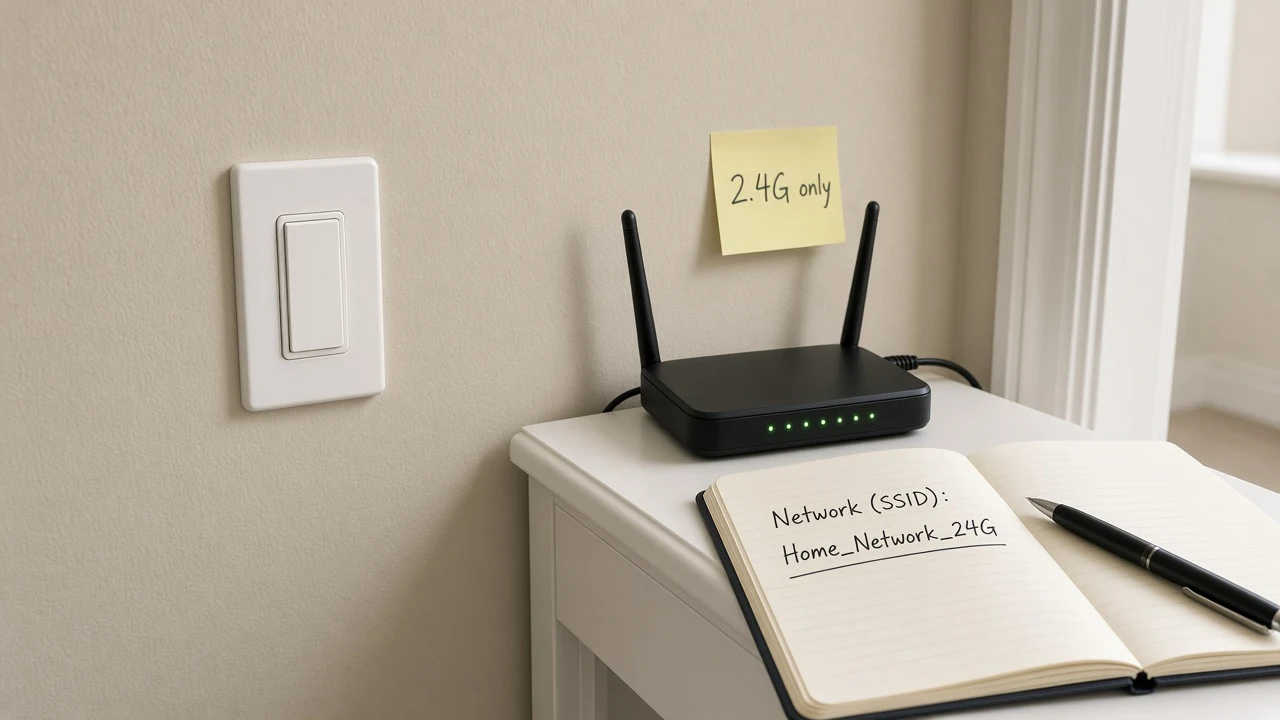
Also note whether encryption is enabled and whether default router admin credentials were changed. Those are basic wireless-hygiene inputs, not optional afterthoughts. Coverage education targets such as roughly −67 dBm at the install point appear in installer blogs; treat them as site-survey language, not as a warranty number for any named SKU.
Name the App account / region and the admin identity before the first device joins.
Commissioning under a personal login that later leaves the company creates orphan devices. Freeze: app family (manufacturer / platform app), admin identity, region or data-center choice the app requires, and whether a second phone will share access on day one. Keep QR codes and serial labels until pairing finishes — many devices print them on the back or in the carton.
When the ticket is a broken pairing screen rather than a missing account field, hand it to Tuya Smart app problems instead of expanding troubleshooting here.
Survey power and Neutral wire status per switch box before wall-control SKUs ship.
Line-voltage smart switches often need a neutral return in the box. Retrofit loops without a neutral become “the switch is defective” tickets when the real gap was an undocumented box.
Log voltage expectations, gang count, multi-way notes, and whether a neutral is present. Cross-class electrical depth lives on smart home devices electrical installation; single-switch copper how-tos stay on their install packages. For what a smart switch is versus how crews use it after copper is correct, see what is smart switch and how to use a smart switch once each.
Test sensor placement, then log it, before anyone mounts permanently.
Sensors fail projects as remount labour: motion blind spots, door contacts on the wrong stile, presence sensors facing HVAC vents. Power the sample at the intended spot, confirm the trigger story the RFQ sold, then write room, height, orientation, and power class (battery, USB, or line). Placement is a project input; sensor taxonomy stays on the sensors classification guide linked above.
Name who owns scenes and which mode rules apply before the demo.
Scenes are not the same as a single on/off. Someone must own naming, edits, and which rockers are lighting circuits versus scene triggers. On MOES Star Feather multi-gang faces, lighting modes and scene modes can be switched in the app, with an explicit collection note that Light Mode and Scene Mode cannot be used at the same time.
Important: For the first smart-home kit, write which mode the multi-gang face will ship in. On Star Feather, Light Mode and Scene Mode are exclusive — leaving the sample in the wrong mode makes rockers look broken during handover when they are actually firing a scene map. — source: MOES Star Feather collection
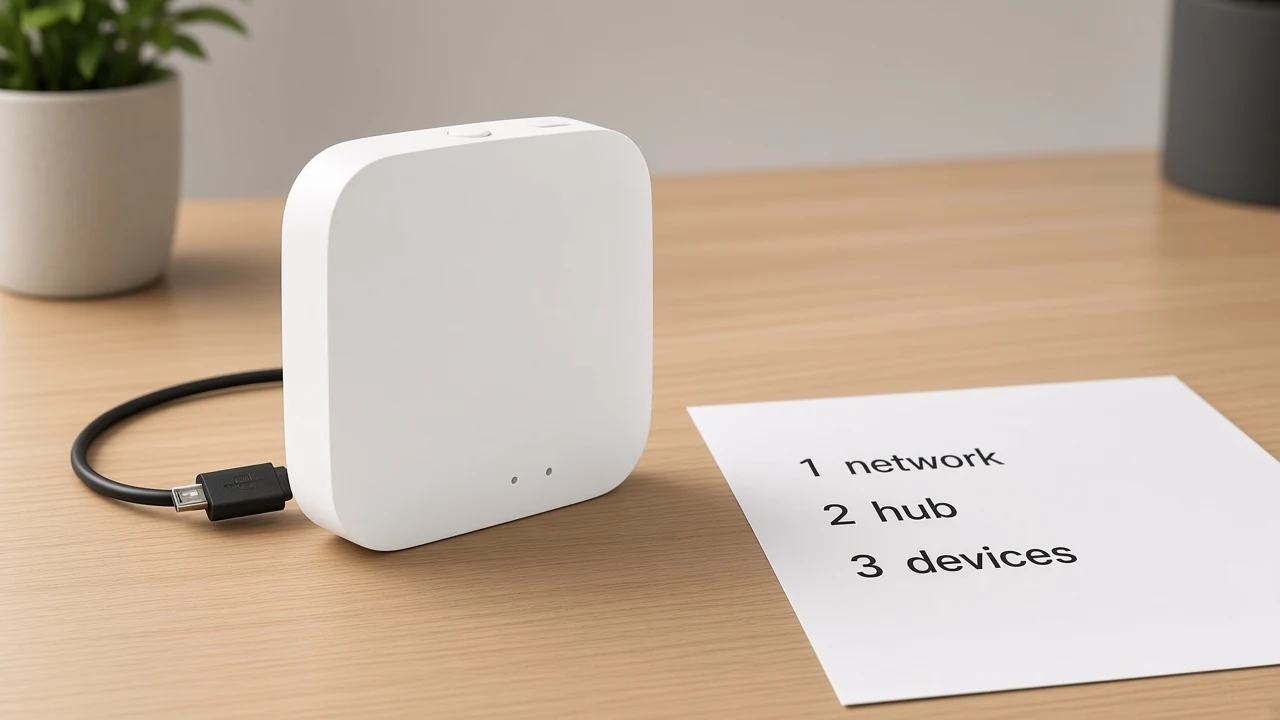
Publish a smart home commissioning order: network and accounts first, then hub if any, then devices one at a time, then scenes.
Out-of-order labour is expensive. A practical sequence for the first smart home setup:
Topology and RACI depth for automation jobs stays on smart home automation installation project inputs. This page only needs the order written so crews do not invent a new sequence per house.
Attach the freeze pack before any “device is broken” escalation.
| Evidence item | Acceptable proof | Blocks escalation if missing |
|---|---|---|
| Path freeze | Written Wi-Fi / hub / split line | Yes |
| SSID / 2.4 GHz note | Photo of SSID list or router note | Yes |
| Admin account + region | Named owner on the sheet | Yes |
| Neutral / power survey | Per-box checklist for wall SKUs | Yes for switch jobs |
| Placement test | Photo or note of tested sensor spot | Yes for sensor jobs |
| Commissioning step log | Which step failed (1–6 above) | Yes |
| Mode / scene owner | Named owner + Light vs Scene choice | Yes for multi-gang demos |
Support teams cannot debug a missing path freeze from a screenshot of a red LED. The evidence table is the gate between project inputs and RFQ escalation.
For a documented Wi-Fi first kit, start with the page-stated Star Feather US switch on the MOES Star Feather US Wi-Fi product page; for a hub path, add the ZigBee gateway and a hub-required ZigBee dimmer module.
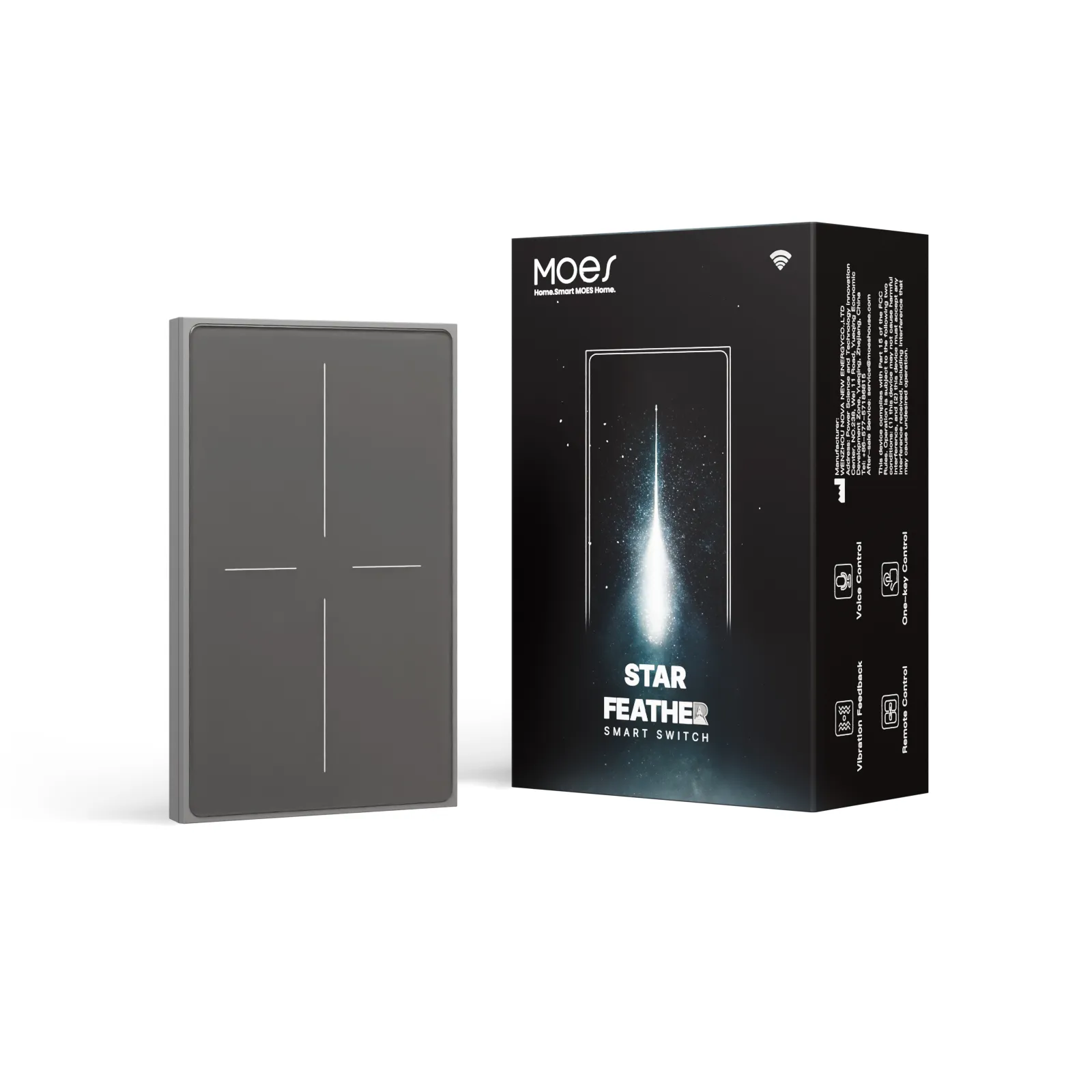
The Star Feather US switch is the bounded Wi-Fi starter for this path.
Live product evidence for the Wi-Fi starter (product page read 2026-09-23): Wireless Protocol Wi-Fi; Voltage 90–250V AC, 50/60Hz; Max.Current 10A/Gang, Total 10A; Frequency Band 2.412~2.484 GHz.
Fact-package notes describe US Star Feather gang entries as neutral-wire products and record that Light Mode and Scene Mode cannot run simultaneously. Those are the only ratings this recommendation uses — no Matter claim is present on that Wi-Fi SKU page, and none is invented here.
When the path freeze says hub-backed, quote a companion gateway such as the MOES ZigBee Wireless Smart Gateway Hub ZHUB-W (page states ZigBee hub for Tuya ZigBee 3.0 products, must work on 2.4 GHz Wi-Fi, Electrical Parameters 5V 2A) together with a hub-required end device such as the MOES ZigBee 3.0 smart dimmer module (page states Tuya ZigBee hub required). Do not ship the ZigBee dimmer module row without the hub row when that path is frozen.
Only if the frozen path uses Zigbee or other hub-required radios. Many Wi-Fi devices commission directly to the site access point. Freeze the path on the input sheet before packing so the kit is not missing a gateway.
Most smart-home radios use 2.4 GHz. Merged dual-band SSIDs and band steering commonly break pairing when the commissioning phone sits on 5 GHz. Write the SSID architecture before the pallet ships.
List the rooms in kit one and the classes that ship with them — switches, plugs, sensors, hub, and any named thermostat or panel. Keep kit one small enough to commission in one visit.
Name a durable admin account and the app region before the first device joins. Personal logins that leave with a contractor create orphan devices and unresolvable tickets.
Per box: expected voltage class, gang count, multi-way notes, and whether a neutral return is present. Missing neutrals are a survey failure, not a mystery product failure.
Path freeze, SSID/2.4 GHz note, admin account and region, power/neutral survey for wall SKUs, placement notes for sensors, commissioning step log, and scene/mode ownership. Without those, escalation is guessing.


OTHER SMART DEVICES
Jun 13,2026
OTHER SMART DEVICES
Jun 12,2026
TUYA SMART HOME PRODUCTS
Jun 12,2026
 +86 137 3639 3028